
Ego Lite is not another cloud browser agent pitch. The useful question for developers is narrower: can your local Mac give a coding assistant controlled access to a browser session you are already signed into?
Is Ego Lite mainly for Macs?
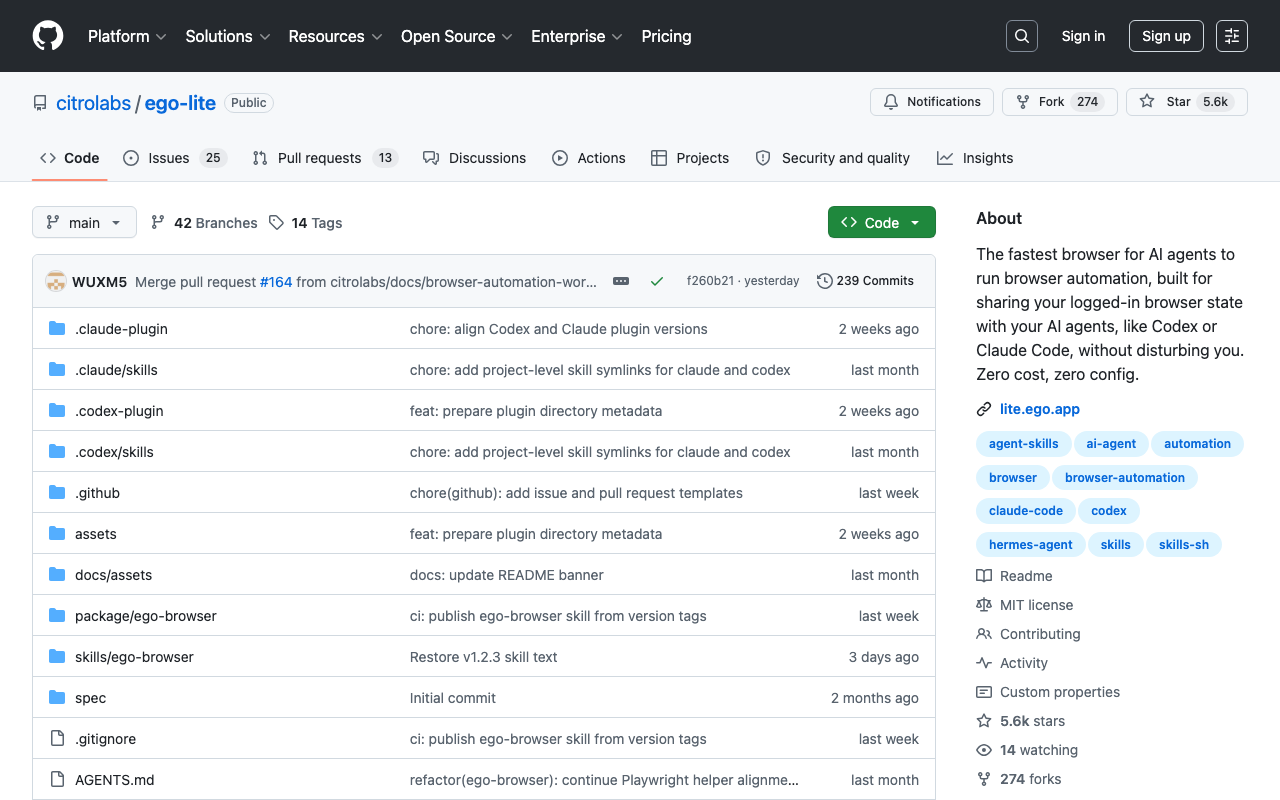
Ego Lite is mainly for Macs today: as of July 28, 2026, CitroLabs presents it as a macOS app for letting coding assistants operate inside a logged-in Chromium environment, while Windows and Linux remain roadmap items . The headline claim that Ego can run complex browser workflows up to 2.5x faster is vendor-reported, and it appears tied to reducing repeated shell invocations by keeping multi-step browser work inside one code-driven `ego-browser` run, not to an independent benchmark .
Quick Answer: Ego Lite is a Mac-first local browser bridge for coding agents. CitroLabs says six parallel Spaces add about 0.9 GB of memory versus about 15 GB for separate browser instances with copied profiles .
The practical reason developers are paying attention is the Space model. A Space is an isolated BrowserContext inside the same Ego Lite Chromium process, with its own cookies and storage, rather than a separate Chrome profile, headless renderer, cloud session, or new full browser instance . That makes Ego closer to a local, logged-in browser bridge for Codex, Claude Code, Cursor, Gemini CLI, OpenCode, and other shell-capable agents than to a general Playwright replacement .
"Windows and Linux on the roadmap," — CitroLabs, Ego Lite documentation (source: CitroLabs GitHub)
| Vendor-reported scenario | Ego Lite Spaces | Separate browser instances with copied profiles |
|---|---|---|
| Six blank-tab concurrent tasks | About 0.9 GB added memory, 6 added processes, and 0.6 s startup | About 15 GB added memory, 84 added processes, and 2.5 s startup |
Here is the catch behind the 2.5x number: it is useful as a directionally interesting product claim, but not as proof that every browser task on every Mac will finish 2.5x faster . Treat it as a reason to run a local smoke test on your own machine, especially if your workflow depends on authenticated SaaS pages, browser extensions, downloads, screenshots, or multi-tab state.
Before You Touch the Installer
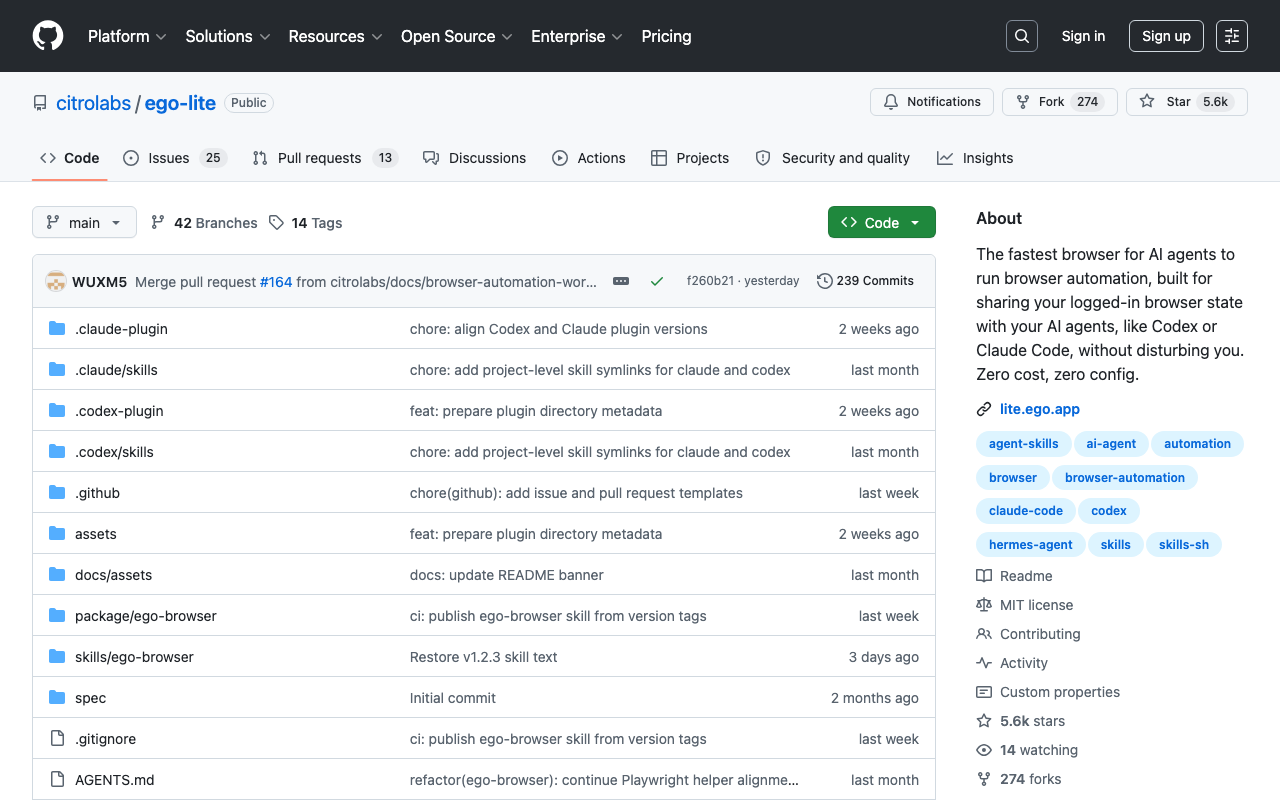
Before installing Ego Lite, confirm that the machine is a Mac you can actually control from the agent: Ego Lite currently targets macOS, with Apple Silicon and Intel install paths documented by CitroLabs. The practical choice is either to download the matching DMG yourself from the Ego Lite repository, or use the documented install flow that selects the CPU-specific package for the Mac it is running on.
Expect two moving parts, not just a browser extension. The deeper install reference says the macOS installer places ego lite.app in /Applications or ~/Applications, removes the quarantine attribute, launches the app, and registers the ego-browser command on PATH, commonly under ~/.local/bin. That matters because your coding agent talks to the local app through the terminal entry point, not through a remote browser service.
Plan the onboarding step before you hand control to an assistant. Ego’s quick-start docs say it can migrate login state from Chrome or another browser, including cookies, extensions, bookmarks, and profile data; the same docs warn that macOS may ask for a password during migration. In other words, do the sensitive profile migration yourself, then let the agent use the resulting Space.
- Use an Apple Silicon or Intel Mac supported by the Ego Lite install path.
- Make sure
ego-browseris reachable from the same shell your assistant uses. - Allow the assistant to launch the local Ego Lite app; a locked-down sandbox will fail before any page interaction begins.
Runnable Sequence for a Logged-In Space
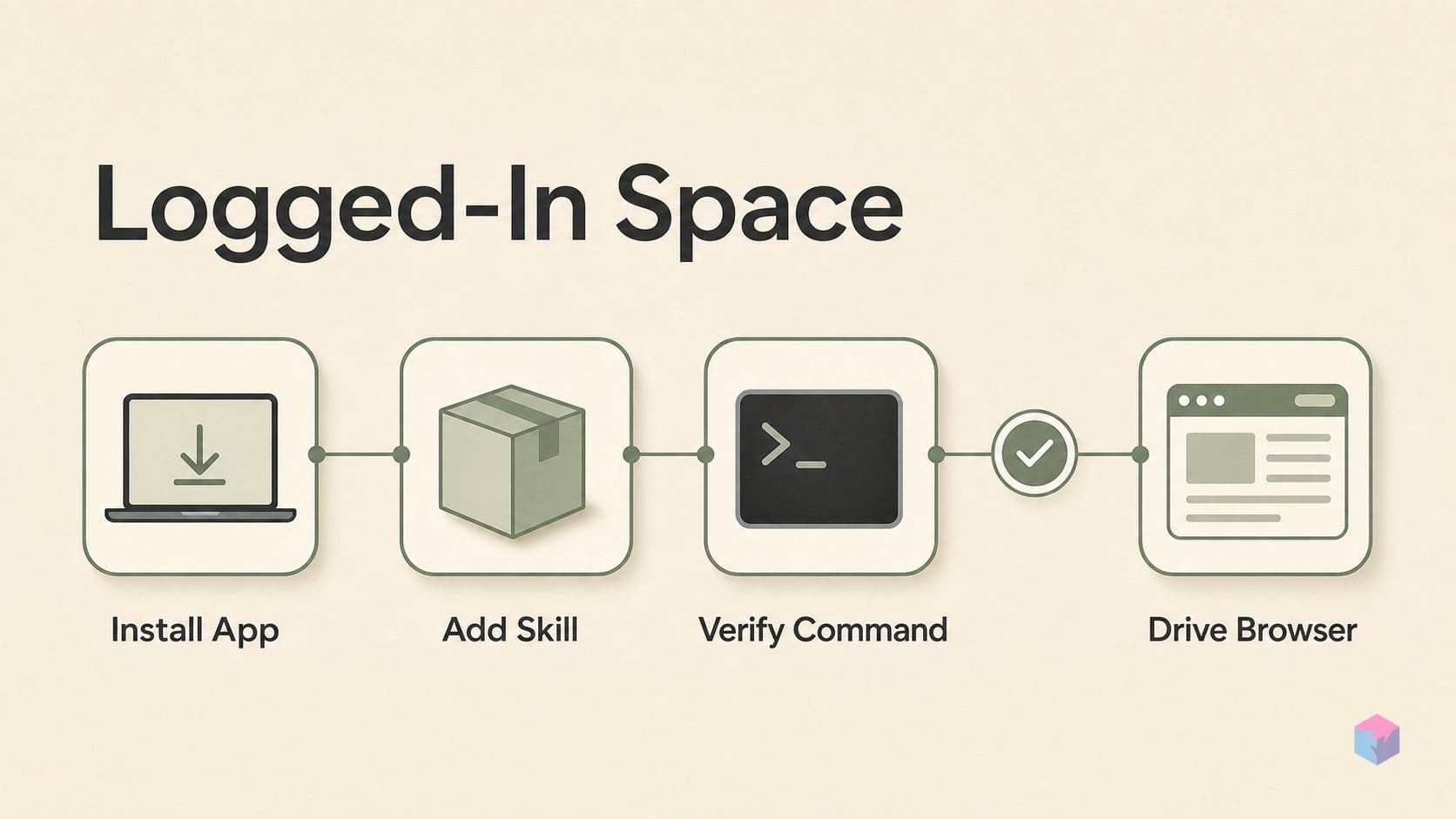
A logged-in Ego Lite Space is created by installing the macOS app or adding the ego-browser skill, verifying the terminal command, then letting a shell-capable assistant drive a browser task inside Ego Lite. Ego’s docs describe the skill path through npx skills add citrolabs/ego-lite or npx skills add github:CitroLabs/ego-lite/skills/ego-browser, while the app route starts from the Apple Silicon or Intel DMG install flow .
- Install the app or skill. Use the official Ego Lite app route if you want onboarding, profile migration, and the local Chromium shell. If you only want the assistant capability first, add the skill with
npx skills add citrolabs/ego-liteornpx skills add github:CitroLabs/ego-lite/skills/ego-browser, both documented by CitroLabs . - Verify the command path. Run
command -v ego-browserfrom the same shell that Codex, Claude Code, Cursor, Gemini CLI, OpenCode, OpenClaw, Hermes Agent, or another assistant will use. CitroLabs’ install reference says the command is usually registered under~/.local/binafter installation . - Run the documented smoke path before delegation. Ego’s install reference points developers toward a minimal
ego-browser nodejsheredoc test, so check the bridge directly before asking an agent to work through it .
baseline_seconds = 10.0
ego_seconds = baseline_seconds / 2.5

print(f"Ego says: {baseline_seconds / ego_seconds:.1f}x faster")
print(f"Baseline: {baseline_seconds:.1f}s -> Ego: {ego_seconds:.1f}s")
print("Catch: your Mac must support/run the local acceleration path.")
The verified snippet above is only a local arithmetic smoke check for Ego’s public speed claim: it confirms that a baseline of 10.0 seconds becomes 4.0 seconds under a 2.5x claim, not that your workflow will actually hit that number. CitroLabs reports “up to 2.5x faster” complex workflows and describes a six-task blank-tab comparison with about 0.9 GB added memory, 6 added processes, and 0.6 s startup for Spaces versus about 15 GB, 84 processes, and 2.5 s for separate browser instances plus profile copies .
After verification, tell the assistant to use /ego-browser or explicitly ask it to use ego-browser. The useful pattern is not one shell command per click; it is a small Node.js workflow where helpers such as useOrCreateTaskSpace, openOrReuseTab, snapshotText, click, fillInput, js, cdp, and captureScreenshot are available to inspect, act, wait, and report in one pass .
The important model is the Space. CitroLabs defines a Space as one isolated BrowserContext inside the same Ego Lite Chromium process, with separate cookies and storage per task; it is not a copied Chrome profile, a headless renderer, a new browser window, or a cloud browser session . That is why the Mac requirement matters: the shortcut is local desktop state plus isolated task contexts, not generic remote browser automation.
Where the Mac Shortcut Bites
Where the Mac shortcut bites is scope: Ego Lite is a local logged-in browser bridge for SaaS, admin, QA, recruiting, booking, and back-office tasks, not a managed browser fleet. CitroLabs frames Spaces as isolated task contexts inside Ego Lite’s Chromium app, which is useful when a coding agent needs authenticated desktop state without taking over your normal tabs CitroLabs.
The practical limit is infrastructure. Ego’s local model does not replace cloud browser sessions, proxy controls, recordings, scheduled runs, API-managed sessions, or output-schema workflows. If the job is “let Codex finish this logged-in admin flow on my Mac,” Ego fits. If the job is “run hundreds of monitored browser tasks across environments,” you are closer to Browser Use or another browser-agent platform.
Browser Use is broader because it spans open-source Python flows, a CLI, and cloud-managed sessions. Its docs cover profile sync for carrying selected local login state into cloud profiles Browser Use profile sync, plus API sessions with settings such as profile IDs, workspace IDs, proxies, browser persistence, model choice, and structured outputs Browser Use sessions API. Its public evaluation material also gives developers more to inspect: BU Bench V1 contains 100 browser automation tasks , and Stealth Bench V1 contains 71 tasks .
Vercel’s agent-browser sits in a different lane: local-first CLI automation with wider operating-system coverage and more explicit login-state controls. Its primitives include named Chrome profile snapshots, persistent profile directories, session restore, saved state files, cURL cookie import, and an encrypted auth vault. The package snapshot cited in the research listed version 0.33.0 , zero dependencies , and about 950,648 weekly downloads . Treat that as a distribution signal, not proof that it matches a Mac desktop workflow better than Ego.
Try This After the Smoke Test
After the smoke test, use Ego Lite only when the task is local, Mac-based, and benefits from a human keeping normal browser tabs open while an assistant works in isolated Spaces. CitroLabs frames Ego Lite as macOS-first, with Windows and Linux still on the roadmap, so the practical test is whether your real workflow needs that local Mac bridge more than a general browser automation stack.
Pick the tool by deployment shape, not by a single speed claim. Ego’s published comparison says complex workflows can be up to 2.5x faster than conventional CLI approaches , but that is a vendor-reported claim. Treat it as a reason to benchmark your own task, not as a default architecture decision.
- Use Ego Lite when Codex, Claude Code, Cursor, Gemini CLI, or another local agent needs to operate in authenticated SaaS pages without taking over your daily browser context, using Spaces inside Ego’s Chromium process via ego-browser.
- Use Browser Use when the job looks like a service: cloud browser sessions, synced profiles, proxies, recordings, scheduled tasks, schema outputs, API controls, or public benchmark visibility through the Browser Use project and its docs.
- Use Vercel agent-browser when you want a Rust CLI, broader platform coverage, Chrome-for-Testing, profile snapshots, dashboards, confirmation policies, and explicit session/state primitives from agent-browser.
Keep Ego’s Experience layer out of production assumptions for now. The skills documentation and repo describe it as forward-looking, so do not attribute real speed gains to it until your own repeated-domain runs prove the gain. The concrete takeaway: start with Ego for a logged-in Mac workflow, switch to Browser Use for hosted browser operations, and reach for agent-browser when you need a portable CLI with stronger session controls.
Frequently asked questions
Can Ego Lite use my existing website logins?
Yes. Ego Lite can migrate browser login state, cookies, extensions, bookmarks, and profile data during onboarding, so an agent can work in pages where you are already signed in, according to the Ego Lite quick-start docs. The practical catch is macOS may ask for your password during migration, because the app is copying protected browser data into its local environment.
Is Ego Lite the same as Playwright or Browser Use?
No. Ego Lite is best understood as a local logged-in browser bridge for coding agents, with isolated Spaces inside the Ego Lite Chromium process, according to the Ego Lite Space docs. Browser Use is a broader browser-agent framework and cloud platform, while Playwright is a lower-level browser automation library that developers usually wire into tests, scripts, or agent systems themselves.
Why does Ego Lite require a Mac today?
Ego Lite requires a Mac today because the current public release is macOS-first. The CitroLabs Ego Lite repository describes Windows and Linux as roadmap platforms, not current primary targets. That matters because Ego’s advantage depends on local desktop integration, the installed app, and the ego-browser command being reachable by your agent.
Does the 2.5x faster claim have independent proof?
Not from the cited material. Treat the “up to 2.5x faster” figure as vendor-reported, not independently benchmarked . The more concrete comparison is Ego’s resource model for six blank-tab concurrent tasks: roughly 0.9 GB added memory, 6 added processes, and 0.6 s startup for Spaces, versus roughly 15 GB, 84 processes, and 2.5 s for separate browser instances plus profile copies .
When should I pick Vercel agent-browser instead?
Pick Vercel agent-browser when cross-platform CLI automation matters more than Ego Lite’s Mac desktop integration. The agent-browser repository documents macOS ARM64/x64, Linux ARM64/x64, and Windows x64 support, plus Chrome profile snapshots, CLI commands, sessions, state restore, a dashboard on port 4848, policy controls, and confirmation gates .
Enjoyed this article? Subscribe to get new stories by email whenever they're published.